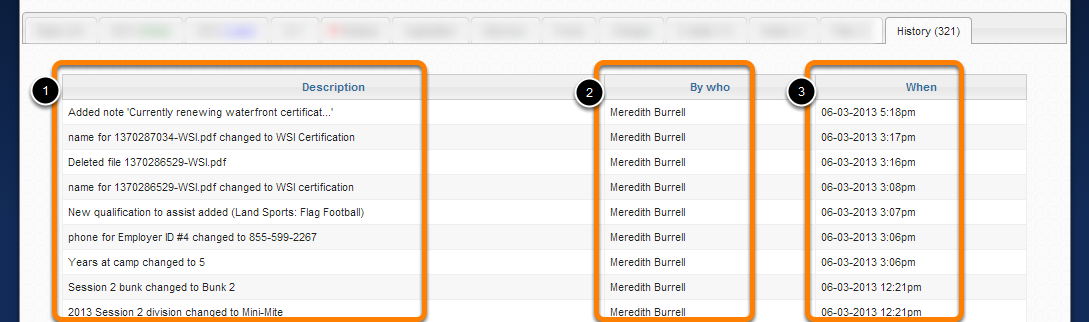
Staff Profile Page
Staff Profile Page: Overview

- Current year and status
- Hired sessions, Division and Bunk assignment
- Quick notes (Staff)
- Staff Profile Action menu
- Staff Profile Tabs
Click on a staff member's photo directly to change the photo as needed.
Please note that profile photo upload file types must be .JPEG or .PNG files. Please note that "iphone" photos (.heic file types) cannot be used by CampSite. In addition, "Live photos" or "motion photos" are not accepted by CampSite and cannot be used.
Action Menu

- Send an email to a staff member.
- Send a text message to staff member. (if your camp has that module)
- Print staff application. (This feature is currently not available in the Beta version of CampSite)
- Generate documents for staff members.
- Generate mailing labels for staff members.
- Generate and email a contract to a staff member.
- Perform an admin reset of a staff members password.
- Hire for the current year.
- Merge a staff member in to another existing staff members profile (Generally this is for merging duplicate staff members).
- Delete a staff members profile.
Hiring a Staff Member
Use the Hiring Wizard to hire a staff person for certain session(s) for a given year. You can also set their salary details and email them their contract upon hiring.

To access the hiring wizard for a staff person, navigate to their profile page, open the Action Menu, and click "Hire for [year]".
Hiring Wizard
When hiring a staff person, you'll be prompted to select:
Note: Salary details, custom salary fields, and a confirmation email/contract are not required to complete the hiring process. You can leave these sections blank and provide that information later via the staff person's profile page.
Sessions
Select which camp session(s) to hire the staff person for.

By default, all sessions will be selected. Individually deselect certain sessions, and/or use the 'select all/none' feature.
For each session, you also have the option to select a camper division/bunk to assign the staff person to. This step is optional; you can always assign them to a division/bunk later via the bunking boards page or their profile.
Salary details
Next, enter the staff person's salary details. None of these fields are required and may be skipped/filled out later, after the staff person has been hired.

1. Salary amounts
Provide the staff person's base salary and any other custom "salary amounts" your camp has created.
For returning staff, click the "Fill with [year] salary details" to populate their base salary, title, and custom salary fields from last year. Use the 'clear all values' to empty them.
2. Position and title
See the positions that the staff person selected on their application and checkmark which position(s) you wish to hire them for.
- You can only select from the position(s) the staff person selected on their application. If you wish to hire them for a position they didn't apply for, you can do so via their profile page after hiring them.
- Your Staff Admin setting for "Number of positions an applicant can apply for" determines how many positions you can select to hire a staff person for. Click here to learn more.
3. Start and end date
Click and use the calendar input to provide the start and end date for the staff person's employment.
4. Contract out and due date
Click and use the calendar input to provide when the contract was sent out to the staff person and when the contract is due. This data can be merged into the staff contract itself and can also be presented to the staff person on the Summer Info page of their Staff Dashboard, depending on your admin settings. Click here to learn more.
- When selecting a confirmation email lower down the page, you can also select to attach the staff person's contract to the email, in which case the 'contract out' date would be today. In that case, you can click the 'Set to today' button to autopopulate today's date.
5. Custom salary information fields
If your camp has created any custom salary information fields for the Staff module, they'll populate here for you to fill out.
Email notification/contract
Send a confirmation email to the staff person upon submitting the hiring wizard. You can also attach their contract to the email.

Use the dropdown menus to select one of your saved email messages for the Staff module as well as one of your staff contracts. If needed, you can also edit the contract before generating and sending it. Note that any changes you make will only apply to the present contract being generated, not the overall contract template.
- If you don't wish to send an email at this time, select 'None' for the "Saved e-mail" setting. You can also send an email without a contract.
- If you choose not to generate/attach a contract to this confirmation email, you can still generate and send their contract to them later via the Action Menu of their profile page.
Click "Hire staff member" to submit the page and hire the staff person. Afterwards, you'll be redirected to the staff person's profile page which will reflect their new hired status.
Un-hiring a Staff Member
Use the un-hire tool to un-hire a staff person from all of their sessions for the year.
- If you need to un-hire a staff person from some but not all sessions, use the Session Management page instead.

To un-hire a staff person, open the Action Menu on their profile and then select "Un-hire for [year]".
Unhiring

1. New status
Select which lead status to apply to the staff person upon unhiring them.
To manage the staff lead statuses in your database, go to Admin > Staff > Lead statuses. Click here to learn more.
2. Remove this staff member from their assigned department and title
Select whether or not to remove the staff person from their assigned department and title, too (if applicable).
If you deselect this option, the staff person will still appear on your staff departments page with their assigned department and title, but their name will be appended with their new lead status, like this:

3. Finalize the un-hiring process.
After confirming the unhiring process, you'll be redirected to the staff person's profile, which will now reflect their new un-hired status.

Staff Profile: Basic info Tab
The "Basic info" tab contains basic information about the staff person, as well as their permanent custom fields of data.

Essential Staff Data
"Essential" information is collected on the 'Basic Info' page of your staff application.**
For returning staff, their 'Basic Info' page will pre-populate information they provided previously, though they may edit it when completing the Basic Info for a subsequent year, if needed.

Edit staff data manually by double clicking directly on the current data. Note: Age is auto-calculated from the date of birth on file. To adjust a staff person's age, change 'date of birth'.
** Years at Camp is an admin-only field that CampSite calculates automatically, based on the total number of database years a staff person is listed as 'hired'. Though this data is auto-calculated, admin may still double click to edit this value if needed.
Addresses and Lead Source
Addresses and lead source are also collected on the 'Basic Info' page of your staff application (if you've enabled these sections in your application settings).
Addresses are also rolled over year after year for returning staff so they don't need to re-enter their address each year they apply, though they may edit it if needed.

Double click the map icon to open their address in Google Maps.
Permanent Custom Fields

View/edit the permanent custom fields of information for this staff person.
- To manage the overall permanent custom fields of information for all camper profiles, go to Admin > Staff > Custom Fields.
Staff Profile: Yearly info Tab
Yearly info

Under "Yearly info" you have the Staff Position, Department, Title, and Availability. Also, under "Yearly info" the User will have the option to generate a contract pdf. This can be generated from the Action Menu.
Salary details

You can adjust Basic salary details by double clicking on the input data.
Transportation

Display whether or not a Staff member uses the bus as transportation to camp.
Sessions

Session tabs will appear for all sessions in which a staff member is hired.
- Division and bunk assignment for specified session
- Custom fields: Admin>Staff>Custom fields>Session fields
Staff Profile: Application Tab
The Application tab contains all the information submitted by the staff member on the Staff Dashboard.


First on the Staff application we have the Education section. Here a potential Staff can add their varying levels of education.

Enter employer info here. Add as many employer profiles as you want.

Potential staff can also record all of their certifications.

Staff can choose from a dropdown list of the activities your camp offers (Health and Office related duties can also be listed). Of those activities they can be set as qualified to lead or qualified to assist.

Add as many references as your camp requires.

Create questions from Admin>Staff>Setup Wizard Step 2 and then choose what you want the potential staff to answer.

- Questions can be curtailed to specific positions as well.
- Once the application is completed an admin user will have the ability to download a printable pdf of the application.
Staff Profile: Medical Tab
The Medical tab contains all information pertaining to a Staff's medical profile. The information in this tab is viewable only by CampSite users with Staff Medical Permissions.

See the Medical Module manual for more details.
Staff Profile: Interview Tab
The Interview tab allows you to take notes and document responses while interviewing a Staff member.

See documentation on Staff Hiring for more information.
Staff profile: Salary details tab
View/manage the Staff person's salary details and charges (a.k.a. salary draws) from the Salary details tab.

Basic Salary Details

Basic Salary Details can be filled out from the hiring wizard at the time an applicant is hired. Double click to edit any of the current values.
Custom Salary Information fields

If your camp has created any custom salary information fields for your staff profiles, they'll display in this section. Salary information fields are for storing additional information regarding the staff person's salary, besides any salary amounts that should sum towards their total and adjusted salaries.
Salary information fields function like all other custom fields - you can enter plain text, numbers, use a dropdown list, etc. To add or edit data, double click the current value/"edit...", enter the amount, and click OK to save.
To create custom salary information fields, go to Admin > Staff > Custom Fields.
Salary amount fields

Here, you'll find the staff person's "Base salary", plus any custom "salary amount" fields your camp has created (if applicable).
Salary amount fields are for storing different salary amounts that will be summed together to calculate the staff person's total and adjusted salaries.

To insert or edit a salary amount Double click the current value or "edit...", enter the amount, and click OK to save.
Total and Adjusted Salaries

CampSite will autocalculate the Total Salary; Total Taxable Salary; Total Charges; Adjusted Salary; and Adjusted Taxable Salary amounts at the bottom of the salary amounts table.
To learn how these amounts are calculated, read below:

Total Salary = Sum of all custom Salary amount fields + Base Salary

Total Taxable Salary = Sum of all custom Salary amount fields set as taxable

Total charges = Sum of the total Staff charges for the year, displayed as a negative number (deduction)

Adjusted Salary = Total Salary - Total charges

Adjusted Taxable Salary = Total taxable salary - Total charges
Staff Charges
Create staff charges to record any pay draws you need to make against a staff person's salary, then reference each staff person's total charges when preparing their paychecks to make deductions as needed.
CampSite also references the "total charges" amount when autocalculating a staff person's adjusted salaries.

Charges are displayed in chronological order, with the most recent charges at the top. See when the charge was created, the charge details, and which admin user created it.
In the bottom right corner, see the charges grand total.
Note that admin users must have permission to staff charges to read and or edit this section. To learn more, click here.

- Click to add a new charge
- Double click to delete a charge
Note that charges cannot be edited after the fact. If you need to edit a charge, delete it and recreate it.
If you need a new category for the charge you're creating, create the category by going to Admin > Staff > Charges > "+ Add new category..."
To report on all staff charges, go to Admin > Staff > Charges > Staff charges report.
Staff Profile: Forms Tab
Creating Staff Forms

- Add new Permanent, Yearly, or Session based forms. Be sure to click on the individual forms in order to add questions to them. (please see next section for a more involved explaination of form creation)
- The User has the ability to edit, view the existing form, print or upload.
- The User may also, create new form categories and assign existing or new forms to them. Please see Camper forms for further explanation on how to create and manage forms.
- Move or copy a form within the selected category and move it to a new categorical destination (i.e.permanent, yearly, session).
- Delete forms if they have no submition linked with them.
Step by step form creation

- Give the form a name.
- Select from 'Web' or 'Printed'. 'Web' is a form that you create in CampSite where as 'Printed' is one that you can upload. 'Printed' can be set to 'Download only' if you so choose.
- Set a 'Due date' or leave blank.
- Mark whether a form is 'Active' or not.
- Mark whether a form is 'Editable' or not.
- Mark whether or not a User, who has opted in to receive notifications, should receive a notification when a form is submitted.
- Assign a category (if you have created categories under "Manage form categories").
- Set restriction by reports set up in "Advanced reports". (i.e. select "Appears on Report". Then select a saved report. i.e. "All hired for 2016")
- The User has the option to have important forms show on the staff application. The User will also have the option to make the form mandatory. Meaning the potential staff member will have to fill out the form before submitting the application. (Currently presenting forms on the Staff application is limited to 'Permanent forms' and 'Yearly Forms'.
Staff forms from the staff profile

Staff forms appear within the Forms tab and are organized into Permanent, Yearly and Session.
You can use the Forms tab to track the submission status of Forms.
Viewing forms
*It should be noted that if your camp is in the middle of rolling over to the next enrollment year. Meaning you have completed Step 1 of the enrollment Wizard but not Step 2. Then only forms for the current year will display on the Staff Dashboard. Once Step 2 of the enrollment Wizard is completed then forms for the next year will display.

Click the name of a form to open the Form viewer

Marking forms as received

Click "Mark as received"

When marked as received you will be given a notification of "Yes" and the date it was received on.
Staff Profile: Tasks Tab
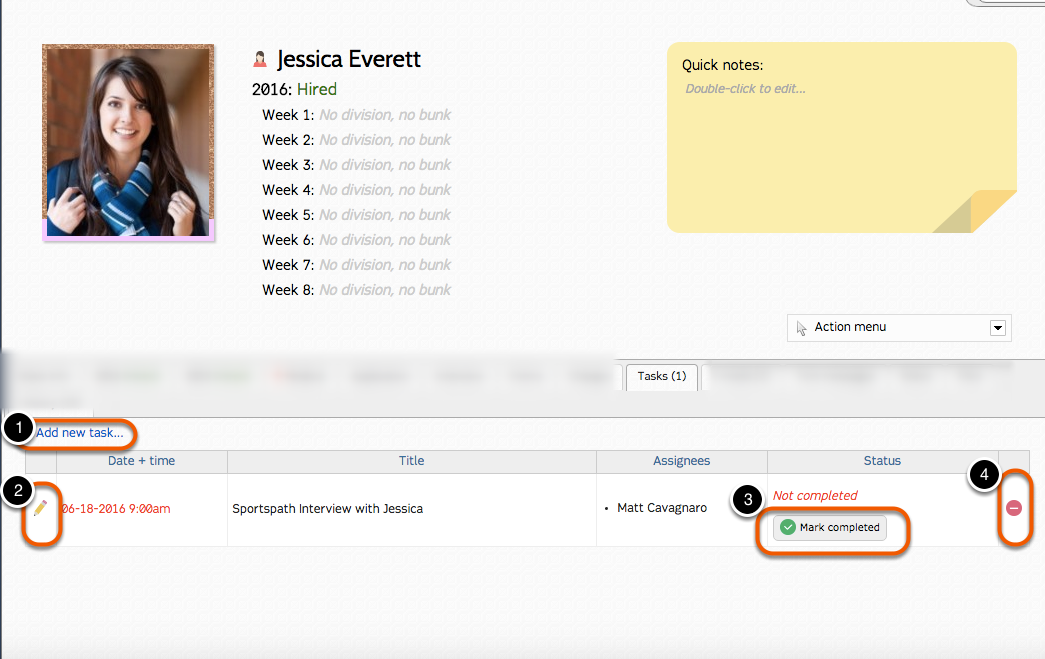
Create tasks for to be completed by admin users for particular staff members.
- Add new tasks
- Double click on the pencil icon to edit the task
- Mark completed when done.
- Or delete the task all together
Staff Profile: Staff Charges
Staff 'Charges' has moved to the Salary Details section of the Staff profile.
Staff Charges Report
This report is a accessible from Admin>Staff>Charges

Click on Staff charges report.

- Select the year for your report.
- Set the categories.
- Give a date range or leave blank to search all dates.
- Give an amount range.
- Enter a full or partial description.
- Run the report.

Staff Profile: E-mails Tab
The e-mails tab contains a history of e-mails sent through CampSite related to the Staff Profile.
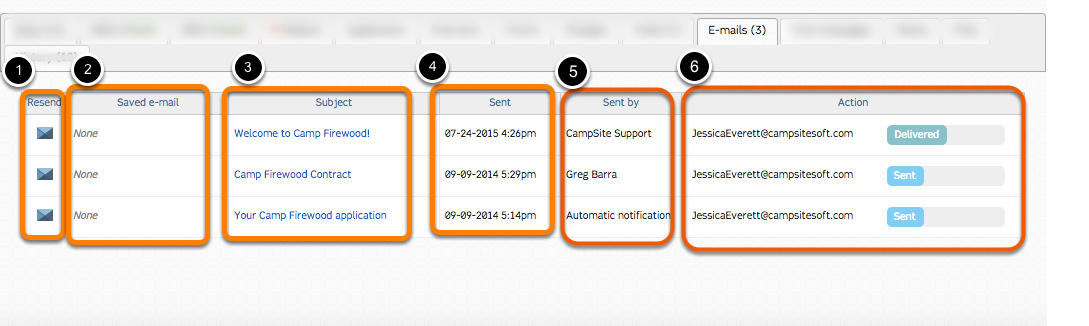
- Resend a sent email.
- If it is a saved email template or not.
- E-mail subject.
- Time and date stamp for e-mail.
- Sender.
- Action: "Sent, Delivered, Opened, Undelivered".
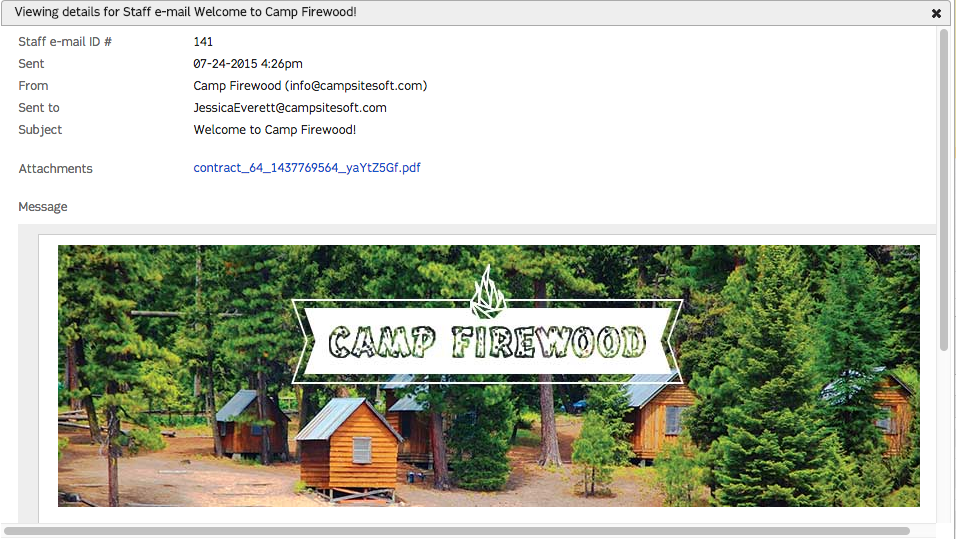
View sent e-mail
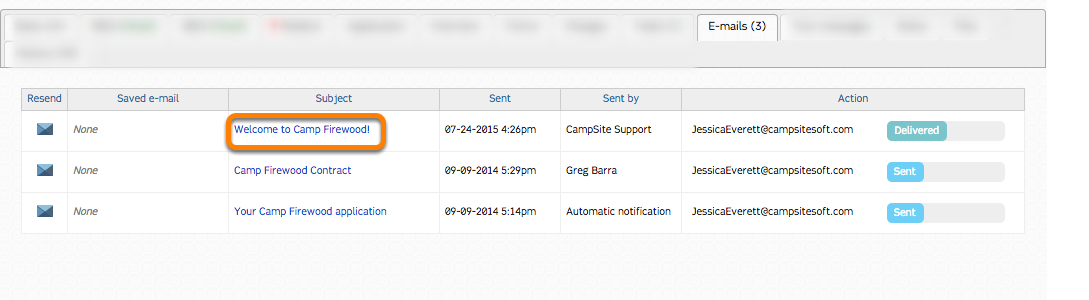
Click the e-mail subject to view e-mail content.
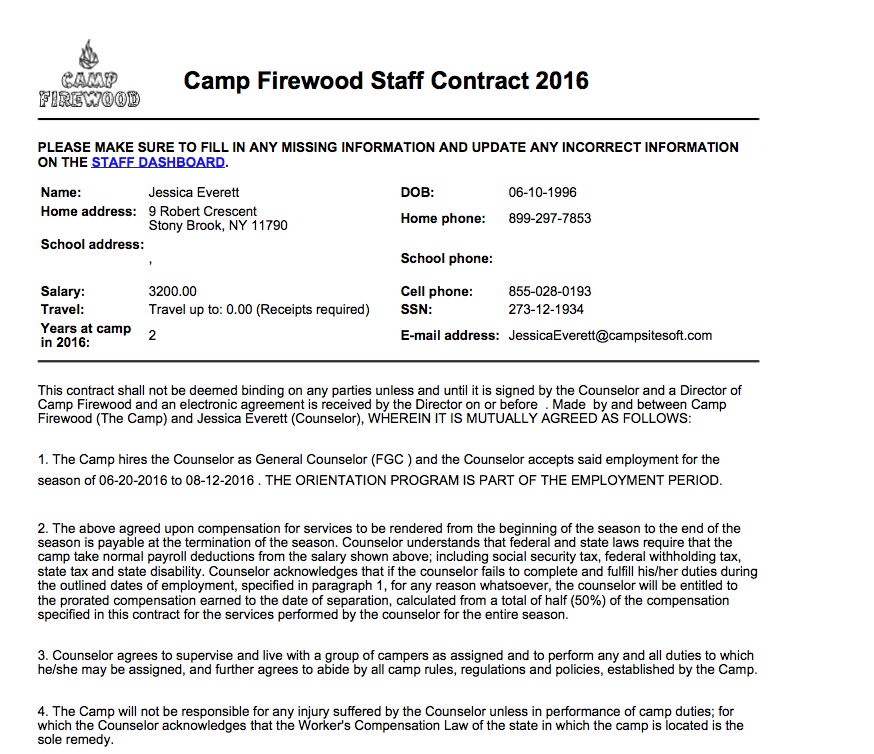
View sent attachment

Click an attachment to view.
Staff Profile: Text messaging Tab
Here you can send text messages directly to a staff member to inform them of any changes that require their immediate attention. You may also access the Text Messaging Dashboard by going under the Staff tab and scrolling down to Text messaging.
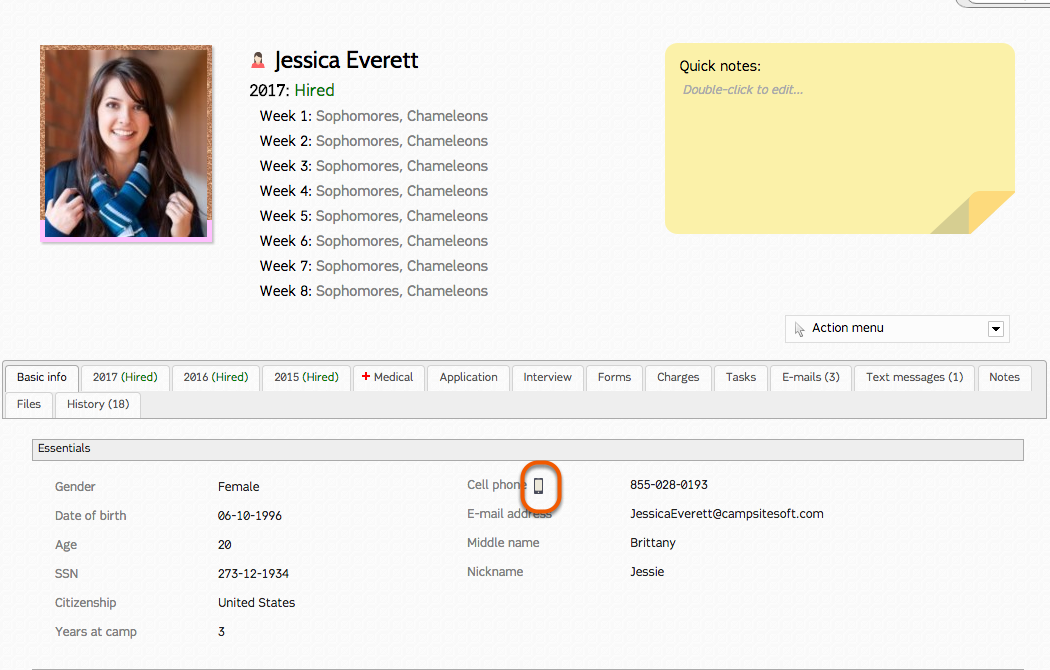
First double click the cell phone icon to "opt in"
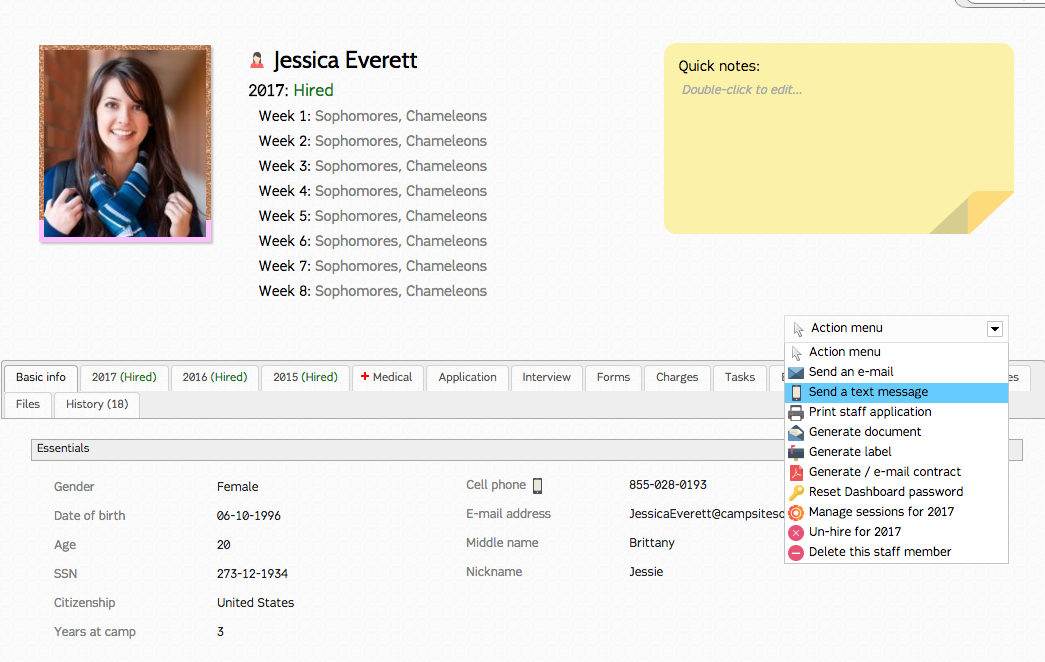
Click the action menu, and select "Send a text message"

- Select a saved text message that you have created under the Admin.
- Create a new text message.
- Calculate how may credits you will use. It will display at the in the next cell.
- Send Text message.

Staff Profile: Notes Tab
The notes tab is a place to document longer information and conversations that would not fall under the "Quick notes" category.
Add a new note

- First select a category that you have set under Admin>Staff>Notes.
- Click "+Add a new note..." to create a new note.
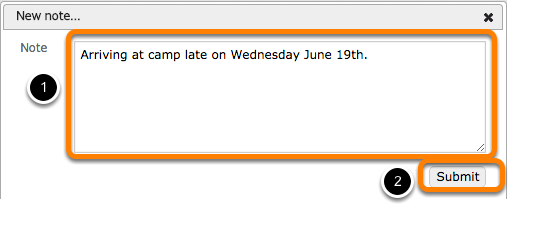
- Type your new note
- Click "Submit" to save.

Notes appear in chronological order with the newest note at the top.
Edit a note

Double-click on the pencil icon.
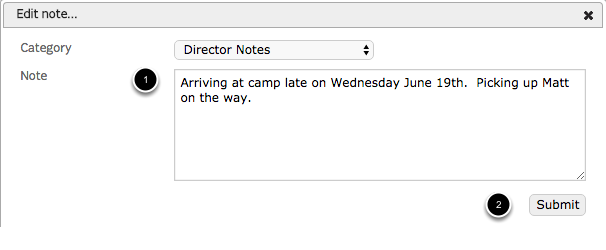
- Edit text
- Click "Submit" to save

The edited note is now saved.
Staff Profile: Files Tab
The Files tab allows you to upload documents to a Staff Profile.

To attach a file to an Staff Profile page, click "+Upload file..."
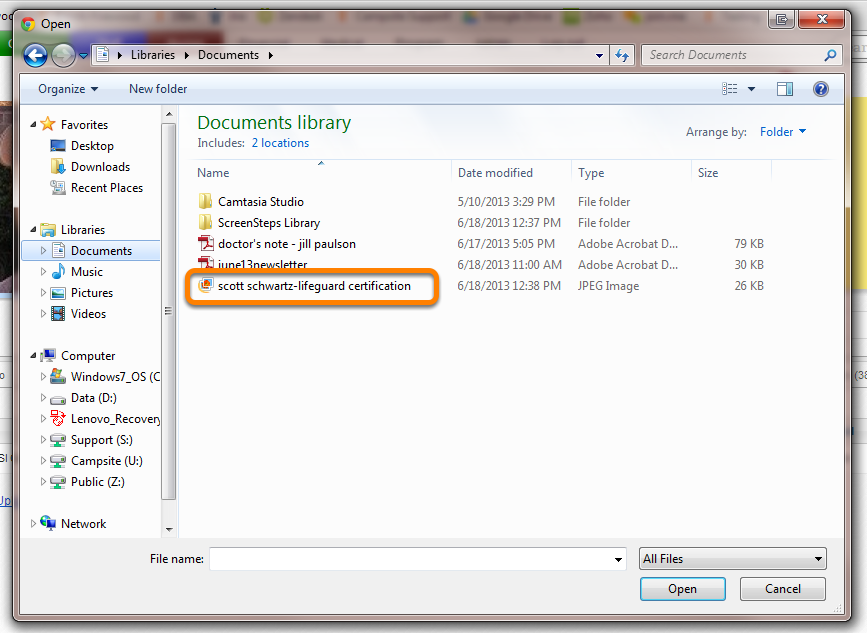
Select the file you wish to upload

Files appear in chronological order, with the newest file at the top
Renaming a file

Double-click to name a file

Enter the new file name and click "Ok" to save

Viewing a file

Click the filename to view.